CNC G-Code Simulator
G00 • G01 • G02 • G03 • G81 • G83 • Tool Path • Canned Cycles • M-Codes — Simulate • Explore • Practice • Quiz

G-Code Quick Reference
Motion & Positioning
| Code | Description | Syntax |
|---|---|---|
| G00 | Rapid positioning | G00 X_ Y_ |
| G01 | Linear interpolation (cut) | G01 X_ Y_ F_ |
| G02 | Circular arc CW | G02 X_ Y_ I_ J_ F_ |
| G03 | Circular arc CCW | G03 X_ Y_ I_ J_ F_ |
| G28 | Return to machine home (via an optional intermediate point) | G28 [X_ Y_ Z_] |
Modes
| Code | Description |
|---|---|
| G17 / G18 / G19 | Plane select — XY / ZX / YZ. Only G17 arcs are simulated. |
| G20 / G21 | Inch / Metric units |
| G90 / G91 | Absolute / Incremental positioning (on a lathe G90 is the turning cycle — see Turning) |
| G94 / G95 | Feed per minute / per revolution. This mill always feeds per minute. |
| G40 / G41 / G42 | Cutter compensation off / left / right. Recognised; the path is drawn on the tool centreline. |
| G43 / G44 / G49 | Tool-length offset + / − / cancel. Recognised; H offsets are not applied. |
| G53 | Move in machine coordinates (non-modal) |
| G54–G59 | Work coordinate systems. Recognised; all treated as zero here. |
| G04 P_ | Dwell. Recognised; the pause is not timed here. |
M-Codes
| Code | Description |
|---|---|
| M00 / M01 | Program stop / optional stop — a real control waits for Cycle Start |
| M03 S_ / M04 S_ | Spindle ON clockwise / counter-clockwise |
| M05 | Spindle OFF |
| M06 T_ | Tool change. Accepted; no tool table is simulated. |
| M07 / M08 / M09 | Mist coolant / flood coolant / coolant OFF. Accepted; not simulated. |
| M02 / M30 | Program end / end & rewind — nothing after these runs |
Canned Cycles (Drilling)
| Code | Description | Syntax |
|---|---|---|
| G81 | Basic drilling cycle | G81 X_ Y_ Z_ R_ F_ |
| G82 | Drill with a dwell at depth (flat-bottomed counterbore) | G82 X_ Y_ Z_ R_ P_ F_ |
| G83 | Peck drilling, full retract to clear chips | G83 X_ Y_ Z_ R_ Q_ F_ |
| G73 | High-speed peck — breaks the chip without full retract | G73 X_ Y_ Z_ R_ Q_ F_ |
| G84 | Tapping cycle | G84 X_ Y_ Z_ R_ F_ |
| G80 | Cancel canned cycle | G80 |
💡 A cycle is modal: after G81/G82/G83/G73 a bare X_ Y_ block drills another hole at that position. Holes are coloured by cycle — ● drill, ● peck, ● tap.
Turning — what is different
| Code | Description |
|---|---|
| X | X is a DIAMETER. X50 puts the tool 25 mm from the centreline. |
| Z | Along the bar. Z0 is the finished face; cuts run to negative Z. |
| U / W | Incremental X / Z. A lathe has no G91 — U is an incremental diameter. |
| I / K | Arc centre offsets, and they are RADIUS values even though X is a diameter. |
| G18 | ZX plane — the lathe plane, and the default here |
| G98 / G99 | Feed per minute / per revolution. G99 is the turning default, so F0.2 means 0.2 mm per rev. |
| G96 S_ / G97 S_ | Constant surface speed (S in m/min) / direct RPM. Under G96 the spindle rises as the diameter falls. |
| G50 S_ | Spindle-speed clamp — the ceiling G96 may not pass |
Turning Cycles
| Code | Description | Syntax |
|---|---|---|
| G90 | Straight/taper turning cycle — NOT absolute positioning. Four moves: in, along, out, home. | |
| G94 | Facing cycle — the same rectangle rotated | |
| G71 | Stock-removal roughing along a contour | G71 U_ R_ P_ Q_ F_ |
| G70 | Finishing pass along the same P–Q contour | G70 P_ Q_ F_ |
| G76 | Multi-pass threading | G76 X_ Z_ P_ Q_ F_ |
💡 G71 and G70 take the same P and Q block numbers — the N-numbered blocks between them define the finished contour. In G76, P is the thread height in microns, Q the first pass depth, and F the pitch.
Not simulated on this lathe: G72, G73, G74, G75 and G92. Each one warns rather than doing something else.
Parameters
| Letter | Description |
|---|---|
| X / Y | Target coordinates |
| Z | Z target / depth (negative = below the surface) |
| R | Retract / clearance plane height |
| Q | Peck depth increment (G83/G73) |
| I / J / K | Arc centre offsets, measured from the start point (not from the origin) |
| R | Also an arc RADIUS: G02 X_ Y_ R_ is an alternative to I/J. A negative R takes the long way round. |
| U / W | Incremental X / Z on a lathe |
| P | Dwell (G04, G82), or a contour start block (G70/G71) |
| F | Feed rate (mm/min or in/min) |
| S | Spindle speed (RPM) |
| T | Tool number |
⚡ Speeds & Feeds Calculator
1 Overview
The CNC G-Code Simulator is an interactive tool for writing, visualizing, and animating CNC programs. G-code is the standard programming language that controls Computer Numerical Control machines, instructing them where to move, how fast to cut, and what operations to perform. This simulator lets you write G-code in a syntax-highlighted editor and instantly see the resulting tool path rendered on a virtual workpiece in 2D or 3D isometric view.
The simulator supports all fundamental motion commands: G00 (rapid positioning), G01 (linear interpolation at controlled feed rate), G02 (clockwise circular arc), and G03 (counter-clockwise circular arc). It also recognizes coordinate modes (G90 absolute, G91 incremental), unit selection (G20 inch, G21 metric), and M-codes for spindle and program control. 30 example programs are included — 17 for milling, ranging from basic squares to bolt hole circles, face milling patterns, contour chamfers, 5-pointed stars, circular pockets and multi-pass depth programs, and 13 for turning with Z-axis colour visualization.
2 Setting Up the Job
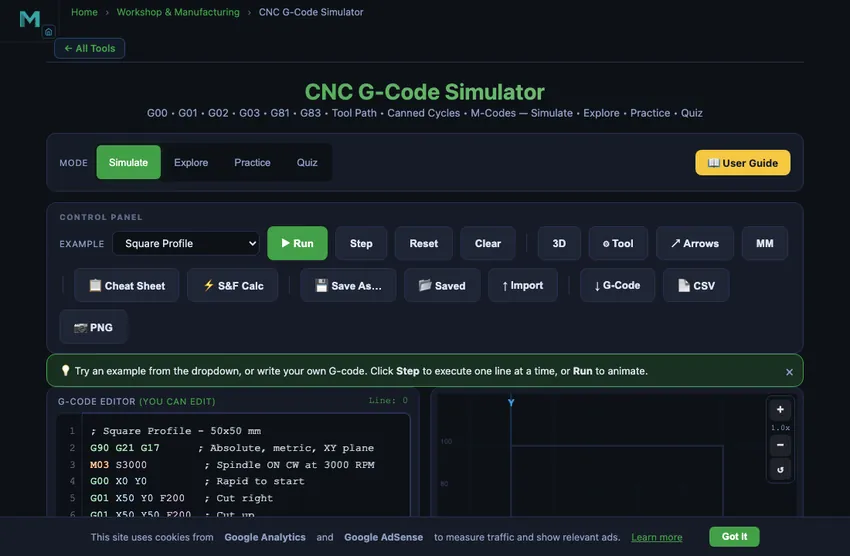
The simulator opens in Simulate mode with a split layout: the syntax-highlighted G-code editor on the left and the tool path canvas on the right. The Control Panel is in two rows: the top row sets what you are machining — a Milling / Turning switch and the example program — plus an SI / Imperial switch. The row below is what to do with it: Run, Step, Reset, Clear, then the two reference tools — S&F Calc and Cheat Sheet — and two menus. View holds the display options (isometric 3D, material removal, animated cutter, cut-direction arrows) and remembers them between visits. Material removal replaces the tool path with the metal itself and cuts it away as the program runs — on a mill a strict plan view of the plate in its vice, on a lathe a side elevation of the bar in its chuck — with the blank size, the volume removed and the cutter it was removed with reported on the canvas. Tick Isometric 3D as well and the plate becomes a solid block you can see the depth of — the plan view shows the shape of a pocket and can only imply how deep it is. The 3D button on the canvas, beside the fullscreen button, does both in one click: on a mill the block in its vice, on a lathe the turned bar in its chuck with the real tool in the turret. It stays in step with the View menu, and pressing it again puts back the view you had. The two tool-path options grey out while material removal is on, because they would do nothing; Program holds save, open, share, import and the three exports. Below the canvas, a speed slider sets how fast the program is played back (1× to 10×, where 1× is three times real machining speed). The readout row shows current X/Y coordinates, feed rate, spindle RPM, program line, and total path length. A yellow-blinking guide highlights the next action button.
Switching machine keeps your work. Milling and Turning each load their own first example, which used to throw away a program you had typed. If the editor holds anything other than an untouched example, the switch now asks first — and Cancel is the useful answer: it changes the dialect and leaves your code exactly where it was, so you can read the same program as a lathe would.
To run your first program: (1) Select an example from the dropdown (e.g., Square Profile). The editor fills with syntax-highlighted G-code. (2) Click "Run" to play the program through. The tool travels along each move in proportion to the time that move really takes — a 200 mm cut takes a hundred times longer than a 2 mm one, a plunge at F40 visibly crawls where the profile at F200 sweeps past, and rapids flick across at traverse speed. Watching the run is therefore watching the cycle-time estimate being spent, and the Path Length readout climbs with the tool rather than jumping a whole move at a time. Rapid moves are dashed, cutting moves solid and coloured by depth. Press Run again to pause: the machine stops at the last completed block, so Step carries on cleanly from there. (3) Use "Step" to execute one line at a time, watching the current line highlight in the editor and the tool advance on the canvas. (4) After completion, a Toolpath Statistics panel shows cut distance, rapid distance, total moves, estimated cut time, and bounding box. (5) Click "Reset" to return to the start, or "Clear" to empty the editor and write your own code. Hover over the canvas to see real-time X/Y machine coordinates.
3 Running the Operation
The editor features full syntax highlighting: G-codes appear in green, M-codes in orange, coordinates (X/Y/Z/I/J/R/Q) in blue, S/F/T values in purple, and comments in gray. A line indicator shows which line is currently executing, with a yellow highlight bar on the active line. The canvas renders the complete tool path with distinct colours: rapid moves (G00) as dashed gray, linear cuts (G01) in green, clockwise arcs (G02) in blue, counter-clockwise arcs (G03) in red, and drilled holes as circles with crosshairs, coloured by cycle — violet for G81, purple for G83/G73, amber for a G84 tap.
Canned Cycles (G81/G83/G73/G84): Type a drilling canned cycle to visualise hole patterns. G81 drills at each X/Y position; G83 peck-drills in increments (Q value). Once a canned cycle is active, each subsequent line with only X/Y coordinates repeats the drill at that new position. Use G80 to cancel. The Toolpath Statistics panel counts drill holes separately.
Tool Diameter (⌀): Set a tool diameter with the −/+ stepper in the speed row — hold either button to run through the range — to show a translucent cut-width band along every cutting move. The box is in whichever unit system is selected, and the badge beside it says which. This helps visualise material removal width at a glance. Set to 0 to hide. Keyboard shortcuts: F5 = Run/Pause, F8 = Reset, F10 = Step.
3D View: View → Isometric 3D view gives a true isometric projection: the stock is drawn as a slab with thickness, every move is placed at its real Z, so depth passes step down into the material and a plunge is a vertical line. In this view the coordinate tooltip reports the point on the stock's top face under the cursor. Animated Cutter: View → Animated cutter shows a spinning cutter with a feed direction arrow. Use Ctrl+Scroll to zoom, drag to pan, or use the +/−/reset buttons. On a phone a single finger scrolls the page; zoom in first and the same finger then pans the view. The Cheat Sheet button opens a quick-reference overlay with all G-codes, M-codes, canned cycles, and parameters — and it follows the machine switch. In Milling it says G90 is absolute positioning; in Turning it says G90 is the turning cycle, lists U/W instead of G91, and adds the G71/G70/G76/G96 group. One sheet could not be right for both dialects, so there are two.
4 Explore — the Reference Library
Click the Explore tab to access a reference library organized into three categories: G-Codes, M-Codes, and Programming Concepts. Each category presents a grid of selectable concept cards. Click any card to view a detailed explanation with the command's syntax, a code example and a worked problem.
G-Code topics cover G00 (rapid), G01 (linear cut), G02/G03 (arcs with I/J center offsets), G90/G91 (absolute/incremental), G20/G21 (units), and G28 (home return). M-Code topics explain M03/M04/M05 (spindle), M08/M09 (coolant), M00 (program stop), and M30 (program end). Programming concepts cover program structure, block format, coordinate systems, cutter compensation, and tool change sequences. This is your quick-reference guide for G-code syntax. (For the Speeds & Feeds calculator — cutting speed, RPM, chip load and feed for a real cutter in a real material — see section 7.)
5 Try a Problem
Practice mode tests your G-code knowledge with exercises. You might be asked to identify the correct G-code for a specific motion, determine the endpoint of an arc command, or write the coordinates to produce a given tool path. Enter your answer and check it. Solutions explain the reasoning behind each answer.
Quiz mode presents five questions per session covering G-code commands, M-codes, arc programming, coordinate systems, and program structure. Questions range from basic identification (what does G02 do?) to practical application (write the command to cut a clockwise semicircle). Review your score and retake to master CNC programming fundamentals.
6 Shop Tips
- Start with the Square Profile example to understand basic G00 and G01 commands, then progress to Circle, Oblong Slot, and Complex Contour for arc programming. Try advanced examples like Bolt Hole Circle (G02 arcs in a pattern) and Circular Pocket (concentric cuts).
- Use Step mode to execute one line at a time, watching how each command moves the tool. This is the best way to learn arc commands (G02/G03). The editor highlights the active line.
- For arc commands, remember: I and J are the offsets from the current position to the arc center, not the absolute center coordinates. Open the Cheat Sheet for a quick-reference table.
- Always start programs with a safety line: G90 G21 G17 (absolute, metric, XY plane), then M03 S3000 (spindle on), and end with M05 M30 (spindle off, program end).
- View → Isometric 3D view makes spatial relationships in the tool path readable; View → Animated cutter shows spindle rotation and feed direction during the run.
- If a program looks right but the part comes out untouched, turn on View → Material removal. A contour with no Z word never leaves the top face — the tool path looks perfect and no metal moves, and the panel will say so rather than leaving you guessing.
- Hover over the canvas to see real-time X/Y machine coordinates. Use Ctrl+Scroll to zoom in on details, and drag to pan around.
- After running a program, check the Toolpath Statistics panel for cut distance, rapid distance, estimated machining time, and bounding box dimensions.
- Try writing your own programs after studying the examples. Start simple (a triangle or rectangle) and add arcs as you gain confidence. Use the syntax highlighting colours to verify your code structure.
7 Export, Tools & Advanced Features
Keyboard Shortcuts: F5 = Run/Pause, F8 = Reset, F10 = Step one line. These work whenever the editor or canvas is in focus.
Exports live under Program: G-code downloads the editor content as a .nc file, toolpath CSV is a spreadsheet-ready file including arc centre/radius data and drill hole depths, and image saves the canvas as a watermarked PNG.
Right-click Menu: Right-click on the canvas for quick access to Save PNG, Export CSV, Export G-Code, or Reset. Fullscreen Mode: Click the yellow fullscreen button (bottom-right of canvas) to enter an immersive workspace. On a wide screen the canvas takes the room, the editor runs the full height beside it, and the scrubber, the speed slider and the tool diameter (Drill ⌀ and Nose R on a lathe) move behind the gear button in the toolbar — click it to open them, Escape to close. On a narrow screen they stay where they are. Press Escape again, or click the close button, to exit fullscreen.
Z-Depth Colour Visualization: When programs use negative Z values (actual cutting depth), tool path colours shift from green (Z=0, surface) to blue (deepest Z). Each pass is a different shade, making multi-pass depth cuts immediately visible. Try the "Depth Passes (Z Color)" example. The Current Z readout shows the active cutting depth.
Cut Direction Arrows: View → Cut-direction arrows overlays small directional arrows at the midpoint of every cutting move. This clearly shows the direction of travel along each segment and arc — essential for understanding climb vs conventional milling and verifying circular arc direction (G02/G03).
Toolpath Scrubber: As soon as a program is loaded — before you have run anything — a Scrub slider sits below the canvas. Drag it to scrub back and forth through the tool path at any step. The canvas updates in real time showing the tool path up to that point, and the readouts reflect the machine state at that exact moment. This is ideal for inspecting exactly where a problem occurs in a complex program.
Saved Programs: Program → Save as… stores the current editor content under a name of your choosing, and Program → Saved programs… lists everything you have kept, with the line count, tool diameter and date, and a Load or Delete button on each. Programs persist between sessions in your browser. (Earlier builds also had three numbered quick slots below the editor; they were a second, weaker save system, so they have been folded into this list — anything you had in them now appears as “Quick slot 1/2/3”.)
SI / Imperial: Both systems sit side by side on the toolbar with the active one lit, so the control is also the indicator — which is why it stays out of the menus. Switching converts everything you read: the X/Y/Z, feed, spindle and path-length cards, the toolpath statistics and bounding box, the canvas rulers and their axis captions, the coordinate tooltip, the metal removed in the solid view, and the tool-diameter box (type 0.25 in and the tool is 6.35 mm). Your choice is remembered between visits and shared with the rest of the site. It is a display setting and never rewrites your program — the program's own units are whatever G20 or G21 declares, so a metric program can be read in inches without touching a line of code.
Speeds & Feeds Calculator (the S&F Calc button): a calculator overlay with 9 material/tool-type presets. Select a material, enter tool diameter, flute count and your Machine Max RPM, and it returns spindle speed, feed rate, chip load and the surface speed you are actually getting. Two things it does that a formula sheet does not. Chip load follows the cutter. A ø1 mm slot drill cannot take the feed per tooth of a ø12 — the tabulated fz is quoted at ø6 and scaled as (D/6)0.75 from there, which is why a small cutter gets a small chip rather than a broken shank. The spindle is finite. 200 m/min on a ø1 cutter wants 63,662 RPM; if that is past your machine, a note says so, tells you the cutting speed you will really get, and matches the feed to the RPM you can actually reach — keeping the chip the right thickness, which is the part that saves the tool. It does not pretend to recover the cutting speed. Click "Apply to Editor" and it edits the program: the spindle word is rewritten in place to the calculated RPM — not a second M03 added above your own, which the original one would simply override — and the feed is written onto every cutting move, converted to the units your program declares with G20 or G21. A line under the button says exactly what it will change before you press it, and Apply also sets the Tool ⌀ box to the cutter you just sized — the drawn cut width and the metal removed must be the cutter the numbers were calculated for. Plunge moves are left at the feed you wrote: a straight-down move wants a fraction of the side feed, and overwriting it with the milling feed is how drills get broken. In Turning mode only the spindle is set, because a lathe feeds per revolution and this is a milling calculator.
Warnings: The linter checks for: arc radius mismatch (I/J error), G01 with F=0 (stall warning), cutting moves before M03/M04 spindle start, missing X/Y/Z coordinates, coordinates written before any motion command, arcs programmed outside the G17 XY plane, and any G- or M-code the simulator does not execute (G41/G42 cutter compensation, G43 tool-length offsets, G54–G59 work offsets, G04 dwell and so on). Each distinct code is reported once, not once per block. Warnings appear in a red bar with clickable line-jump buttons (Ln) to scroll the editor directly to the offending line.
Editor Line Numbers: A line number gutter on the left side of the editor shows line numbers that stay in sync as you scroll. This makes it easy to cross-reference warnings, error messages, and the program line readout.
Toolpath Statistics: After running a program, a statistics panel shows cut distance, rapid distance, moves, estimated machining time, bounding box, and drill hole count (when canned cycles are used). The bounding box measures the part, not the machine — it is taken over cutting moves only, so a program that opens with a rapid at the origin does not report a box bigger than the shape it cuts. The statistics also clear the moment you edit the program, rather than describing the code you used to have.
Sound Feedback: Audio cues confirm button presses, program completion (ascending chime), and correct/incorrect answers in Practice and Quiz modes.
8 How the Simulator Reads Your Program
G-codes are modal. A motion command stays in effect until another one replaces it, so a block that carries only coordinates continues the last motion. This program cuts all four sides of a square, because G01 is still active on lines 2, 3 and 4:
G01 X50 Y0 F200
X50 Y50
X0 Y50
X0 Y0
The same applies to G00, G02 and G03, and to the drilling cycles — which is why a bare X30 Y10 line repeats a G81 hole at a new position. G80 cancels the mode; after it, a block of bare coordinates is flagged rather than obeyed.
A block may carry several codes. The safety line G17 G21 G90 G40 G49 G80 sets five modes and cancels any cycle in one block, and all of them take effect. Likewise G00 G90 X10 Y10 is a rapid in absolute mode — the order of the words in the block does not matter.
F and S are modal too. A line containing nothing but F300 changes the feed rate for every move that follows, and a bare S2500 changes the spindle speed without stopping the spindle.
A leading / is an optional block skip. On a real control it is a switch on the panel: with Block Delete on those blocks are jumped, with it off they run. There is no such switch here, so they run — and the warning bar tells you that once, so a program written to be skipped does not quietly do the opposite of what its author meant.
M02 and M30 end the program. Nothing written after them is executed, exactly as on a real control. M00 and M01 are operator stops: the simulator notes them in the warning bar and continues, because there is no Cycle Start button to press.
Z travel is real travel. A plunge or a retract is counted in the Path Length readout, in Cut Distance, and in the estimated cut time — a G01 Z-10 F100 is ten millimetres of cutting at F100, not a free move. Each move is timed at the feed rate that was active for that move, not at the program's final feed rate.
Playback is timed, not stepped. Each move is played at length ÷ feed — the same arithmetic behind the Est. Cut Time readout — with rapid traverse taken as 5 m/min. This is why a program can look busy and still be slow: the time is in the deep plunges and the fine finishing feeds, not in the long fast passes. Step is unchanged and still executes exactly one block.
G28 returns through home properly. It retracts Z to zero before crossing the table, so the tool is not dragged through the part, and it will pass through an intermediate point if you give it one (G28 X10 Y20).
What is not simulated. Cutter compensation (G41/G42) is recognised but the path is drawn on the tool centreline; tool-length offsets (G43/G44/G49) and work offsets (G54–G59) are recognised but treated as zero; arcs are interpolated in the XY plane only. Each of these tells you so in the warning bar rather than changing your path silently.
9 Turning Mode — CNC Lathe Work
The Milling / Turning switch at the left of the Control Panel changes the whole simulator between the two dialects. In Turning mode the example list, the readouts, the drawing and the interpreter all change together — and the isometric option disappears from the View menu, because a lathe is drawn in section rather than in isometric.
What changes in the readouts. Current X reports a diameter (marked ⌀), the second card becomes Current Z, and the feed is shown in mm/rev. The vertical ruler on the canvas is labelled in diameters too, so what you read off the picture is what you would type into the program.
What is drawn. The bar is shown in section with a three-jaw chuck gripping its left end and the spindle centreline chain-dashed through the middle. The toolpath is drawn above the axis and mirrored faintly below it, because a turned profile is a solid of revolution. The turning tool is drawn with the insert nose exactly on the programmed point — the nose is the coordinate.
Cycles that run: G90 straight and taper turning, G94 facing, G71 roughing with G70 finishing (give both the same P and Q block numbers), and G76 threading. G96/G97 constant surface speed is solved rather than merely recognised — the spindle really does climb as the diameter falls — and G50 is the clamp that stops it running away at the centre. G98/G99 switch between feed per minute and feed per revolution, and the cycle time follows.
Thirteen worked turning programs ship with it, ordered as a course rather than as a feature list. They start with First Turn, which uses nothing but G00 and G01 — face the end, turn one diameter — then a stepped shaft, chamfers and radii (with the trap that a 45° chamfer needs the diameter to change by twice the Z distance, because X is a diameter). The middle of the list is the machine's own vocabulary: the G90/G94 cycles, taper and radius work with U and W, centre drilling and boring, the two feed modes, constant surface speed, and the same job written in inches under G20. It finishes with G71+G70 roughing, G76 threading, grooving and parting off, and a capstone that runs the whole sequence a shop would — face, rough, finish, groove, thread, part off.
Inside diameters. A drill runs in the tailstock, on the centreline, so it has no X word at all — it is a feed move in Z at X0, and its diameter comes from the Drill ⌀ box (the Tool ⌀ box renames itself on the lathe, because a drill is the only lathe tool a diameter describes) rather than from the program. A turning insert is described by its nose radius instead — 0.4, 0.8 or 1.2 mm in the Nose R list — which is drawn on the insert; the cut itself is modelled at the theoretical sharp point, as a program without nose-radius compensation (G41/G42) is. A feed straight in across the axis — a groove or a part-off — is a job an 80° insert cannot do, so it is cut by a 2 mm grooving blade: a square-edged insert on a thin blade in its clamp block, centred on the programmed Z and exactly as wide as the slot the simulator cuts. A boring bar then goes down that hole and opens it out. The simulator tells the two apart the way the shop floor does: by where the tool is when it enters the metal. That is also why a parting cut, which runs from the outside right down to X0 through solid metal, is still read as an outside cut and not as a bore. Once the blade reaches the centre the part is free and drops: it stays on the canvas, faded, where it was cut, and the legend reports it as Parted off with its diameter and length — it is the part you made, so it is not counted in the Removed figure, which is the chips.
Material removal. View → Material removal switches between the tool path and the workpiece itself, being cut down as the program runs — a bar of aluminium in the chuck on a lathe, a plate of it clamped in the vice on a mill. It is not a picture. Turning produces a solid of revolution, so the material state is exactly two numbers per station along the axis — the remaining radius, and the bore inside it, because a turned part has an inside as well as an outside. Milling on three axes cannot undercut, so its state is exactly one remaining height per station in plan — a height field. Seen from straight above, a pocket wall is not a face you can see but a slope, shaded from its own surface normal; seen isometrically it is a real wall, and the block is drawn as a field of vertical columns, far to near, each clipped against the one in front of it. Z is drawn at the same scale as X and Y — a 4 mm pocket in a 70 mm plate is four seventieths of the plate deep on screen, with nothing exaggerated to make it easier to see. Every cutting move lowers the surface wherever the tool swept. Rapids remove nothing, and a contour with no Z word never leaves the top face, so it removes nothing either — the panel says so rather than leaving you with a blank plate. The panel reports the blank size and how much metal has come off, by volume. Chips fly only while metal is actually being removed, the turned finish is banded at the feed per revolution, and those bands travel as the bar turns. The chuck is drawn in the same side view as the work, with its jaws closed on the bar, and both turn together — though at a speed you can follow rather than the real one: 1,200 rpm is twenty revolutions a second and would only strobe. The rate still rises and falls with the programmed S.
The traps it will catch for you: treating X as a radius, treating I as a diameter, expecting G91 to work, and expecting G90 to mean absolute positioning. The warning bar reports a mistyped arc the same way it does on the mill.
Understanding CNC G-Code — Free Interactive Simulator
CNC G-code is the programming language that controls CNC milling machines and lathes. Essential commands include G00 (rapid traverse), G01 (linear interpolation), G02/G03 (circular arcs), G81/G83 (canned drilling cycles), G90 (absolute coordinates), and G21 (metric units). M-codes control spindle (M03/M05) and coolant (M08/M09). This free simulator lets you write G-code with syntax highlighting, visualise tool paths and drill patterns in 2D or 3D isometric view, and animate cutting with a realistic spinning tool.
Material removal. Both machines carry an exact model of the metal, not a picture of one, and for the same reason: neither process can undercut. A turned part is a solid of revolution, so what survives is one remaining radius per station along the axis. A 3-axis milled part is a height field — the cutter only ever comes from above, so what survives is one remaining height per station in plan. A cutting move lowers the surface wherever the tool swept; a rapid removes nothing. The milled view is drawn as a strict plan view: a pocket wall is not a face you can see from directly above, it is a slope, so it is shaded from the surface normal with ambient occlusion in the corners rather than by tilting the part to show an edge. The cutter diameter comes from the Tool ⌀ box, the flute count from the Speeds & Feeds panel, the depth from your Z words and the spindle from your S word.
CNC G-code is the standard programming language used to control Computer Numerical Control (CNC) machines, including milling machines, lathes, routers, and plasma cutters. Every movement a CNC machine makes — from rapid repositioning to precise cutting arcs and automated drilling patterns — is defined by G-code instructions. Our interactive simulator lets you write G-code in a syntax-highlighted editor (G-codes in green, M-codes in orange, coordinates in blue), instantly visualize the tool path on a virtual workpiece in 2D or 3D isometric view, animate the cutting sequence with a spinning tool indicator, simulate canned drilling cycles (G81, G83, G73) with visual hole markers on canvas, and review toolpath statistics including cut distance, rapid distance, drill hole count, and estimated machining time. With 30 example programs across milling and turning, a machine-aware cheat sheet, keyboard shortcuts (F5/F8/F10), a solid material-removal view, tool diameter cut-width visualization, fullscreen mode, zoom/pan controls, cut direction arrows, a toolpath scrubber, and named program save/open, this is the most complete free CNC G-code simulator available online.
G-Code Commands Explained
G-code programs consist of lines called blocks, each containing one or more commands. The most common motion commands are G00 (rapid positioning at maximum speed without cutting), G01 (linear interpolation at a controlled feed rate), G02 (clockwise circular arc), and G03 (counter-clockwise circular arc). Supporting commands include G90/G91 for absolute and incremental positioning, G20/G21 for inch/metric units, and G28 for returning to the machine home position. Feed rates are specified with the F word (e.g., F200 for 200 mm/min), and spindle speed with the S word (e.g., S3000 for 3000 RPM).
Circular Interpolation — Arc Programming
Arc commands (G02 and G03) require specifying the endpoint coordinates (X, Y) and the arc center offset (I, J) relative to the start point. For example, starting at position (0, 0), the command G02 X20 Y0 I10 J0 creates a clockwise semicircle to (20, 0) with the center at (10, 0) and a radius of 10 mm. The I value is the X-distance and J is the Y-distance from the current position to the arc center. This method is called the incremental center method and is the most widely used approach in CNC programming.
M-Codes and Program Structure
While G-codes control geometry and motion, M-codes (miscellaneous codes) control machine functions like spindle rotation (M03 clockwise, M04 counter-clockwise, M05 stop), coolant (M08 on, M09 off), program stop (M00), and program end (M30). A typical CNC program begins with a safety line (G90 G21 G17), followed by spindle start (M03 S3000), tool positioning, cutting operations, and ends with spindle stop and program end (M05 M30). Understanding this structure is essential for writing safe, efficient CNC programs.
Canned Cycles — Automated Drilling Patterns (G81, G83)
Canned cycles (G80–G89) are modal drilling sequences that automate repetitive hole-making. G81 is the basic drilling cycle: specify the hole position (X, Y), depth (Z), retract plane (R), and feed rate (F), and the machine drills to depth and retracts automatically. Subsequent lines with only X/Y coordinates repeat the same drill operation at each new position. G83 is peck drilling: an additional Q parameter specifies the peck increment, so the tool drills Q mm, fully retracts to clear chips, then drills another Q mm, until full depth is reached. This is essential for deep holes in aluminium or steel where chip evacuation would otherwise cause breakage. Cancel any active cycle with G80. The simulator renders holes as circle markers with crosshairs, coloured by the cycle that made them — violet for G81, purple for the G83/G73 pecking cycles and amber for a G84 tap — so a hole pattern shows both its positions and its operation.
The Five-Line G-Code Program You Will Write a Thousand Times
Every CNC student writes the same five-line program in their first lesson. Then they write a version of it every working day after that. Here it is, dissected:
G90 G21 G17        ; absolute coords, millimetres, XY plane
M03 S1500          ; spindle on clockwise at 1500 rpm
G00 X0 Y0 Z5       ; rapid to the start point, 5 mm above part
G01 Z-2 F100       ; plunge into the part, 100 mm/min feed
G01 X40 F250       ; mill 40 mm to the right at 250 mm/min
The simulator’s line-by-line preview lets you step through this and watch each line draw on the canvas. Three observations that catch beginners:
- The safety line matters. If you forget G90 the machine might interpret coordinates as incremental and crash. If you forget G21 the machine might interpret values as inches. Both have ruined parts in real workshops.
- Z-axis goes negative when cutting. Z=0 is the top of the part. Z=−2 is 2 mm below the surface. Students often try Z+2 and wonder why the tool stays in the air.
- F has different units on G00 vs G01. G00 ignores F entirely (it always runs at machine maximum). G01 uses F as feed in mm/min. Forgetting to set F means the controller uses the last F value — sometimes 5000 mm/min, which makes a violent cut.
Five Errors That Show Up in Every G-Code Lab
- Missing M30 at the end. Program ends, spindle stays on, coolant stays running. Most controllers timeout after a minute, but the safer habit is to type M30 yourself.
- G02/G03 arc with wrong I/J. The arc center is specified relative to the start point, not absolute. G02 X20 Y0 I10 J0 means “arc to (20,0) with center 10mm right of the start.” If you treat I/J as absolute coordinates the tool plunges into the part.
- Feed rate too high for the depth of cut. A 6 mm end mill cutting 2 mm deep in mild steel wants about 200 mm/min. Try 1000 mm/min and the tool snaps. The simulator’s estimated cycle-time readout helps you sanity-check feed rates.
- Spindle direction wrong for the tool. M03 (clockwise) is right for almost all standard-helix end mills. M04 (counter-clockwise) is for left-hand tools or specific tapping operations. Wrong direction means the cutter rubs instead of cuts, with smoke and broken edges.
- Cancelling a canned cycle and then forgetting it is cancelled. After G80 a block of bare X/Y coordinates is no longer a hole — and if no motion code is active it is not a move either. Re-command G00 or G01 before you use plain coordinates again.
- Incremental vs absolute confusion. Switch to G91 once and forget to switch back; from then on every coordinate is a delta. The toolpath wanders off into space, the simulator catches it before the machine does.
What Does “Modal” Mean in G-Code?
A modal command stays in effect until another command in the same group replaces it. Motion codes — G00, G01, G02, G03 and the drilling cycles — are all modal, which is why a hand-written program rarely repeats them. Once G01 has been commanded, a block containing only coordinates is still a feed move, so the four sides of a square need the word G01 exactly once:
G90 G21 G17
M03 S3000
G01 X50 Y0 F200
X50 Y50
X0 Y50
X0 Y0
M05
M30
Feed (F), spindle speed (S), the coordinate mode (G90/G91), the unit mode (G20/G21) and the working plane (G17/G18/G19) are modal in the same way, each in its own group, so a block may legally carry several of them at once. That is what a safety line such as G17 G21 G90 G40 G49 G80 is doing: setting six groups in one block. The one thing that is not modal is a code like G04 dwell or G28 home — those act once and are forgotten. This simulator implements modal group 1 exactly this way, so a program copied out of a machine at work behaves here the way it does on the shop floor.
CNC Milling Simulator — Running a Mill Program Online
Leave the machine switch on Milling and the simulator behaves as a 3-axis vertical machining centre: G17 selects the XY plane, X and Y are true positions on the table, and Z is depth below the top of the part. That is the machine most students meet first, and it is the one the canned cycles belong to — G81, G83, G73 and G84 only exist because a mill drills down the spindle axis.
Because a 3-axis mill can only ever cut from above, the material state has an exact description — a remaining height at every station in plan — so the Material removal view is not an animation drawn to look convincing, it is the block itself. The cutter diameter comes from the Tool ⌀ box, the flute count and chip load from the Speeds & Feeds panel, the depth from your Z words and the spindle from your S word. A cutting move lowers the surface wherever the tool swept and a rapid removes nothing, so a pocket that never plunged stays flat and tells you so. The same block can be viewed as a strict plan view, shaded from the surface normal, or in Isometric 3D where the depth of each pass is drawn at true scale.
Everything runs in the browser: it is a free online CNC milling simulator with no sign-up, no download and no CAM package to buy. Seventeen worked milling examples — facing, a rectangular pocket, contouring, a bolt-hole circle, peck drilling, tapping and more — load straight into the editor from the Examples list, and you can edit any of them and watch the metal change.
CNC Turning Simulator — Lathe Mode, and Why the Same G-Code Means Something Else
Switch the simulator to Turning and it stops speaking the milling dialect. A turning centre is not a mill with the axes renamed: the same three letters mean different things, and each difference is a standing exam question.
- X is a diameter.
X50is a 25 mm radius, so a cut fromX50toX46removes 2 mm of material, not 4. The readout shows the diameter, because that is what you type. - I is still a radius. In an arc,
IandKare offsets to the centre — andIstays a radius even thoughXis a diameter. Mixing the two is the classic mistyped-arc error. - There is no G91. Incremental motion uses different words:
Uis an incremental X (a diameter increment) andWan incremental Z. - G90 is the turning cycle, not absolute positioning. On a mill,
G90 X45 Z-40sets absolute mode and moves. On a lathe it is a complete four-move cycle: rapid in to the cut diameter, feed along Z, feed back out, rapid home.G94is the same rectangle rotated — the facing cycle. - Feed is per revolution.
F0.25means 0.25 mm per revolution, not per minute, so the cutting time depends on the spindle speed as well as the feed.
The simulator runs the cycles a turning syllabus is built around: G90 straight and taper turning, G94 facing, G71 stock-removal roughing with G70 finishing along the same contour, and G76 multi-pass threading. The part is drawn in section — the chuck gripping the bar, the spindle centreline chain-dashed through the middle, and the profile mirrored below it, because a turned part is a solid of revolution.
G21 G18
M03 S1200
G00 X62 Z2
G71 U2 R0.5 P10 Q20 F0.3   ; rough in 2 mm depths of cut
N10 G00 X24                ; --- finish contour starts ---
G01 Z-15 F0.15
X36 Z-25
G01 Z-40
X50
N20 G01 Z-60               ; --- finish contour ends ---
G70 P10 Q20 F0.12          ; finishing pass along the same contour
G00 X100 Z50
M30
Material Removal — Watching the Metal Come Off the Bar
Turning is one of the few machining processes whose material state has an exact, compact description. Because a turned part is a solid of revolution, everything left of the bar is captured by a single number at each station along the axis: the remaining radius. There is no mesh and no voxel grid — a cutting move simply lowers the radius wherever the tool nose passes, and a rapid lowers nothing. That is not an approximation of what the machine does; for turning, facing, taper, radius, grooving and parting it is what the machine does.
Turn on View → Material removal and the G71 example above turns a ø60 mm bar into the stepped shaft it describes, removing 60 % of the metal by volume. The readout tells you the blank size and how much has gone, so a roughing strategy can be compared on the number rather than on the look of it. The surface is banded at the feed per revolution and the bands travel as the bar rotates, which is the same feed figure that sets the cutting time — change F and the finish, the time and the chip all change together.
Standards That Define G-Code
- ISO 6983-1:2009 — Numerical control of machines — Program format and definitions of address words. The foundational G-code standard. Most controllers follow this with proprietary extensions.
- RS-274D — the original American standard from which modern G-code descends. Still cited in older NIST publications.
- Fanuc 30i / Siemens 840D / Heidenhain TNC — each controller manufacturer has its own dialect. Most basic codes (G00−G03, M03−M30) are common, but canned cycles and macro syntax differ.
- Smid, P. — CNC Programming Handbook, 3rd ed., Industrial Press. The reference every programmer eventually buys.
G-Code Quick Reference Table
| Code | Function | Example |
|---|---|---|
| G00 | Rapid positioning (no cutting) | G00 X50 Y25 |
| G01 | Linear interpolation (cutting) | G01 X100 Y50 F200 |
| G02 | Circular interpolation — clockwise | G02 X20 Y0 I10 J0 |
| G03 | Circular interpolation — counter-clockwise | G03 X0 Y20 I0 J10 |
| G17 | XY plane selection | G17 |
| G20 | Inch unit mode | G20 |
| G21 | Metric (mm) unit mode | G21 |
| G28 | Return to machine home | G28 |
| G90 | Absolute positioning mode | G90 |
| G91 | Incremental positioning mode | G91 |
| M03 | Spindle ON — clockwise | M03 S3000 |
| M04 | Spindle ON — counter-clockwise | M04 S2000 |
| M05 | Spindle stop | M05 |
| M08 | Coolant ON | M08 |
| M09 | Coolant OFF | M09 |
| M30 | Program end and reset | M30 |
| G81 | Basic drilling canned cycle | G81 X_ Y_ Z_ R_ F_ |
| G83 | Peck drilling (chip clearing) | G83 X_ Y_ Z_ R_ Q_ F_ |
| G73 | High-speed peck drilling | G73 X_ Y_ Z_ R_ Q_ F_ |
| G84 | Tapping cycle | G84 X_ Y_ Z_ R_ F_ |
| G80 | Cancel canned cycle (modal) | G80 |
Explore Related Simulators
If you found this CNC G-code simulator helpful, explore our Milling Machine Simulator, Lathe Machine Simulator, Drilling Machine Simulator, and Tolerance & Fits Calculator for more hands-on manufacturing practice. Before posting a program, check the numbers behind it: the Speeds & Feeds Calculator works out spindle speed, feed rate, chip load and cutting power for your tool and material.
Updated